
How to: Setup Public Holiday Surcharge / Discount
How to: Setup Public Holiday Surcharge / Discount
Steps:
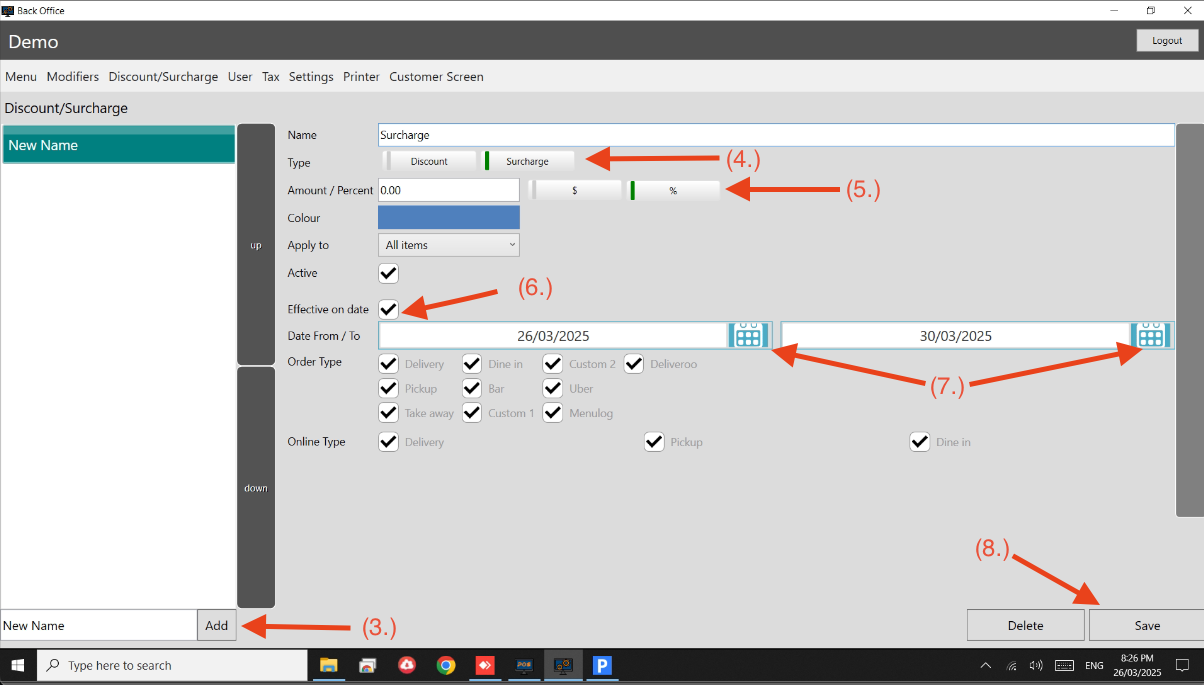
- Go to Back Office.
- Go to Discount/Surcharge.
- Enter name and click on Add to create new Surcharge.
- Switch between Surcharge.
- Set amount or percentage.
- Tick this to apply it on selected date.
- Set Inclusive Date for this Surcharge.
- Save when you are finish.
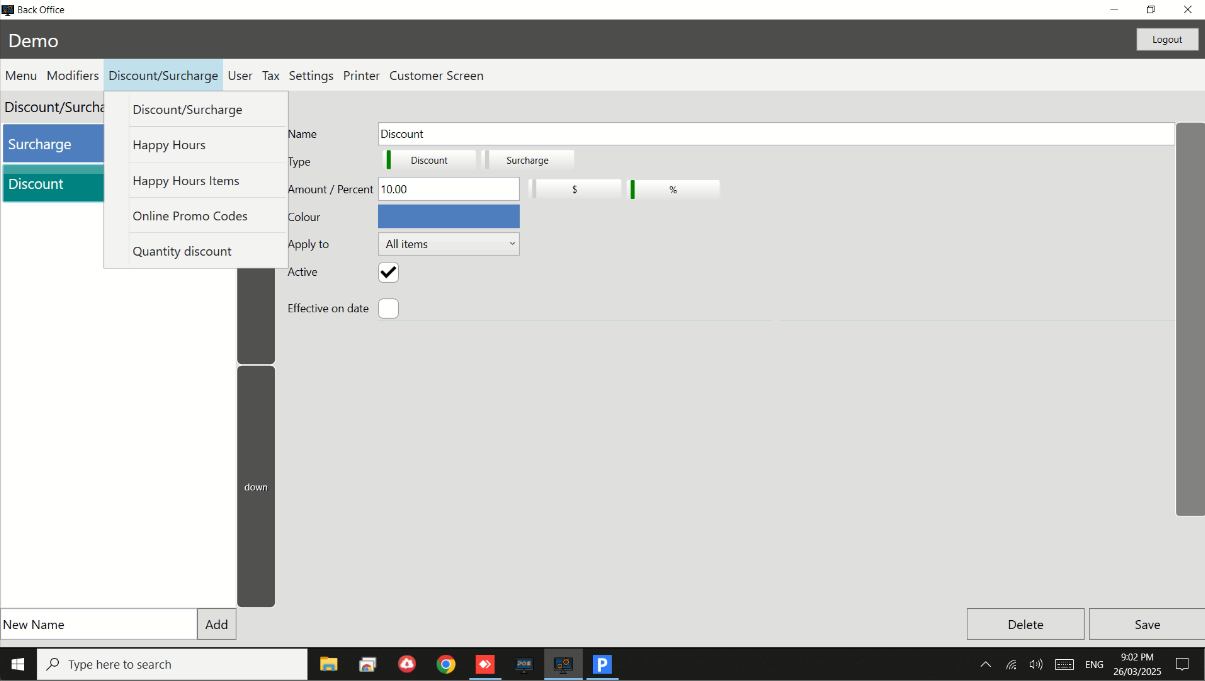
Same thing with creating Discounts. See attached.
Note:
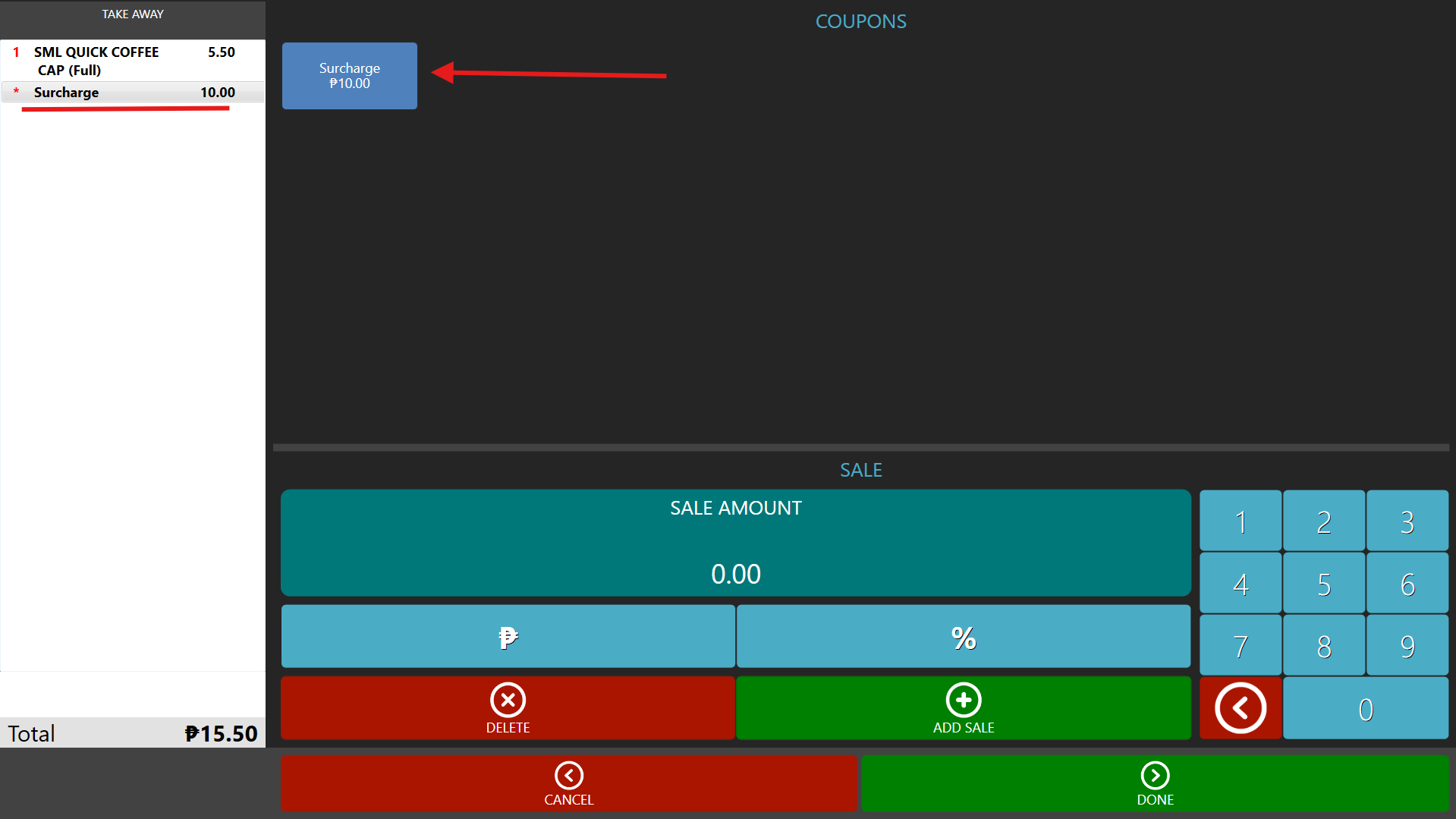
The surcharge needs to be added manually for each order.
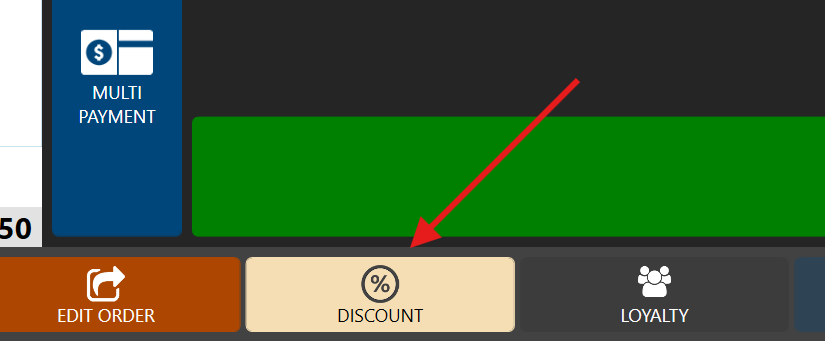
On the Settle screen, tap Discount, then select Surcharge to apply the surcharge before completing the payment.
Still need help?
Ask a question and our team will pick it up. You can also email support@pushpos.com.