
How to Set Up a Customer Facing Screen (CFS) in PushPOS
This guide explains how to upload images and configure the Customer Facing Screen for your POS.
How to Set Up a Customer Facing Screen (CFS) in PushPOS
Steps:
Open Back Office and log in as Admin.
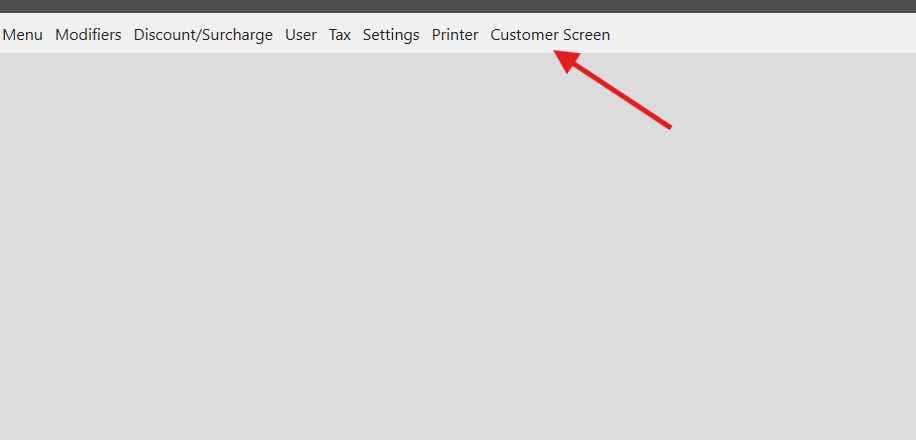
Click the Customer Screen tab.
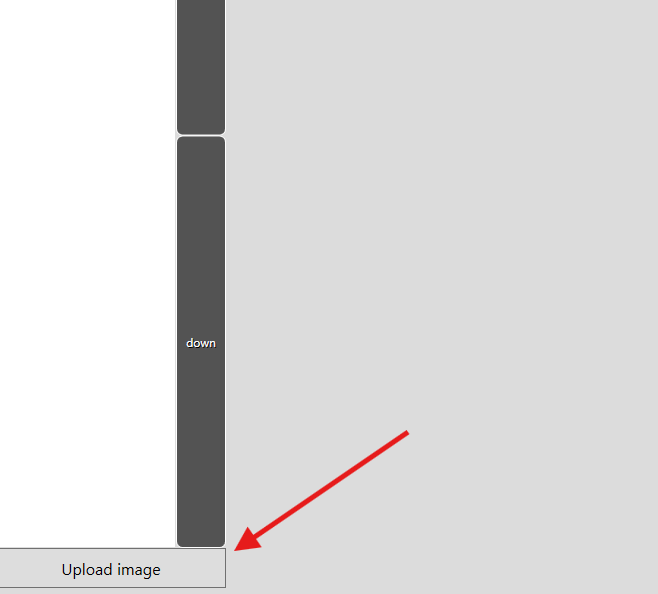
In the lower-left corner, click Upload Image.
Select the image file to upload.
- File format: .jpg
- Recommended size: 1280 x 800 pixels (or match your CFS screen resolution).
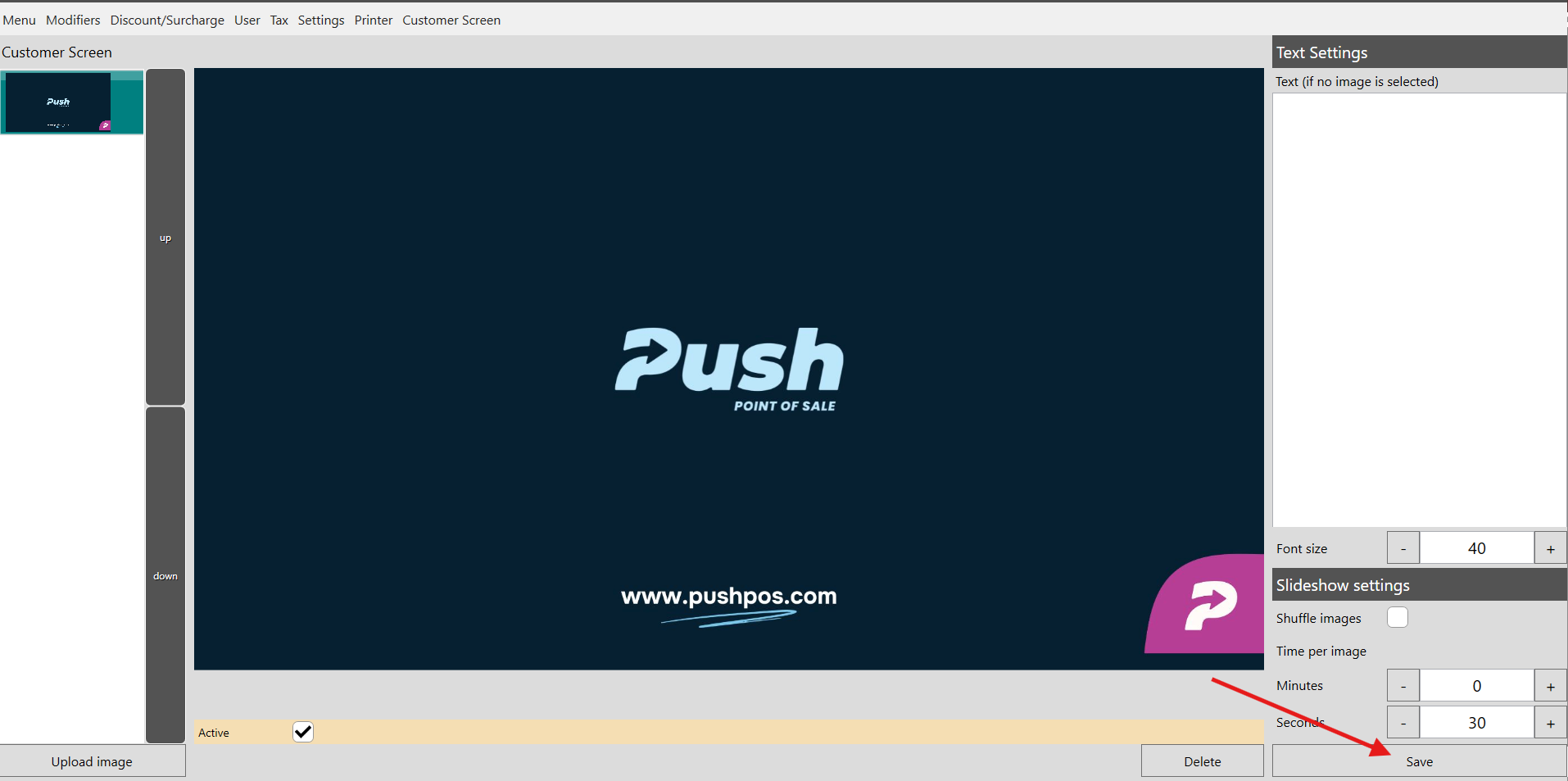
Once the image is uploaded, click Save to apply changes.
Note:
- You can upload multiple images. Do the same procedure on adding the images.
- For multiple images, you can configure Slideshow settings to adjust images automatically.
Still need help?
Ask a question and our team will pick it up. You can also email support@pushpos.com.