
How to Process EOD on POS
Steps in doing EOD on POS
How to Process EOD on POS
STEPS:
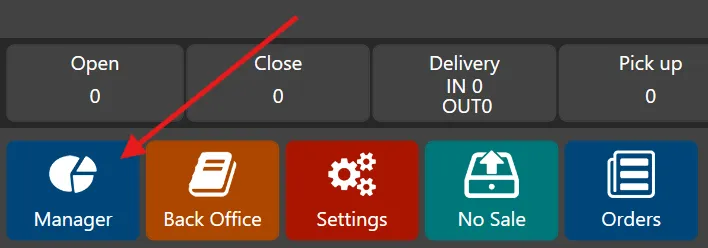
- Log in as Manager. Then click the Manager button in the lower left corner of the POS
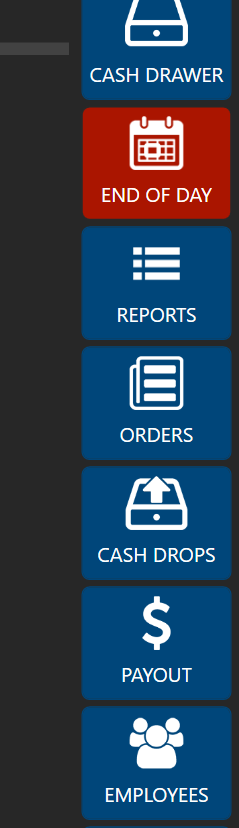
- Click ‘End of Day’ on the left panel.
- Click ‘RUN END OF DAY’

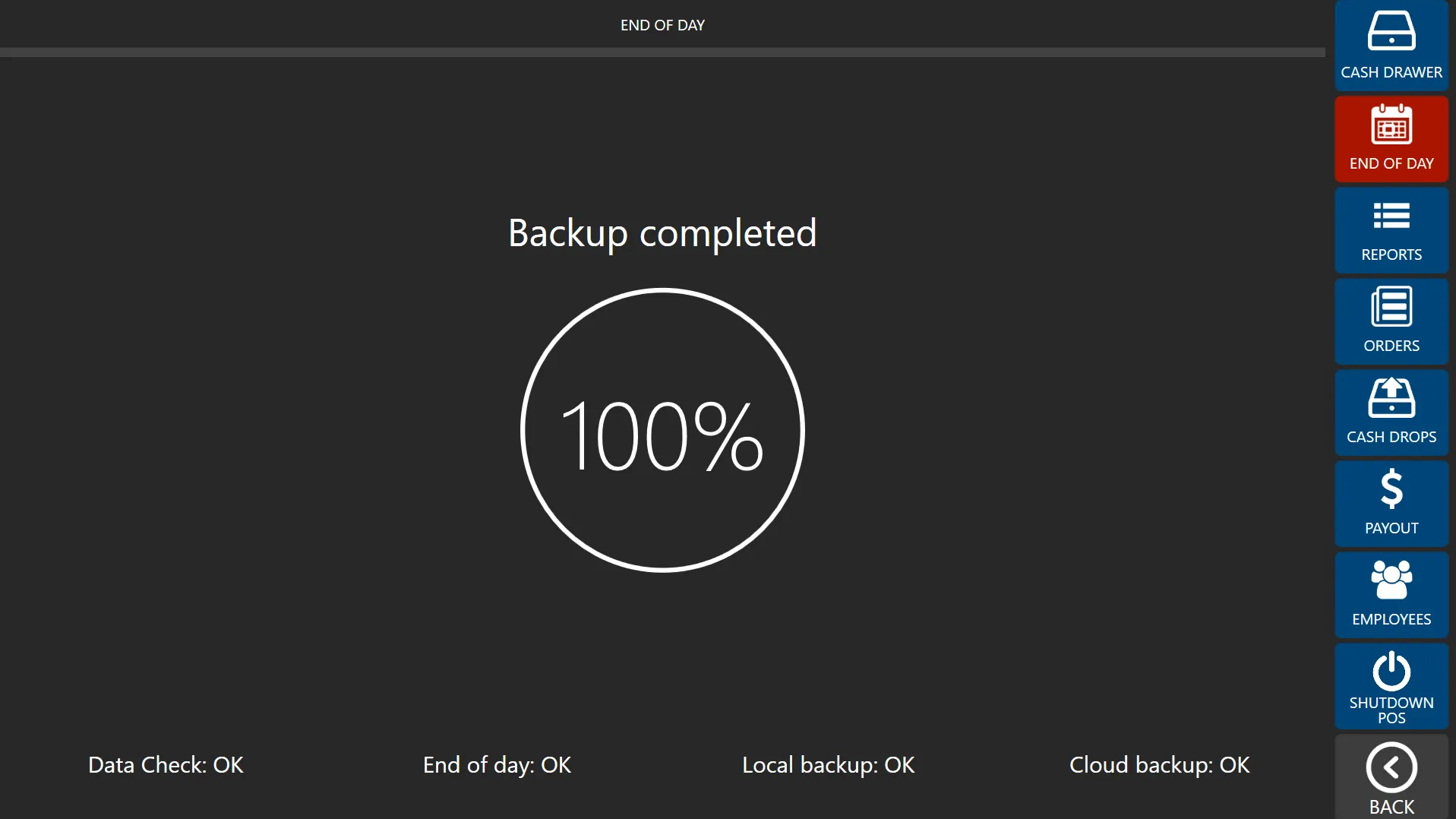
- Wait until the Data Check, End of Day, Local Backup and Cloud Backup statuses all show 'OK'. When all statuses display 'OK', the EOD process has successfully completed.
Note:
- After completion, the process will clear all pending orders, removing them from active display. Additionally, it will print a detailed sales report for the day.
- If you encounter an error, please repeat the procedure. If the issue persists, contact the support team.
Still need help?
Ask a question and our team will pick it up. You can also email support@pushpos.com.