
Troubleshooting Guide: Menu Syncing Not Working on POS
Troubleshooting Guide: Menu Syncing Not Working on POS
Issue:
Menu changes in the back office are not syncing with the POS system.
Step-by-Step Troubleshooting
1. Verify Cloud Menu Control Setting
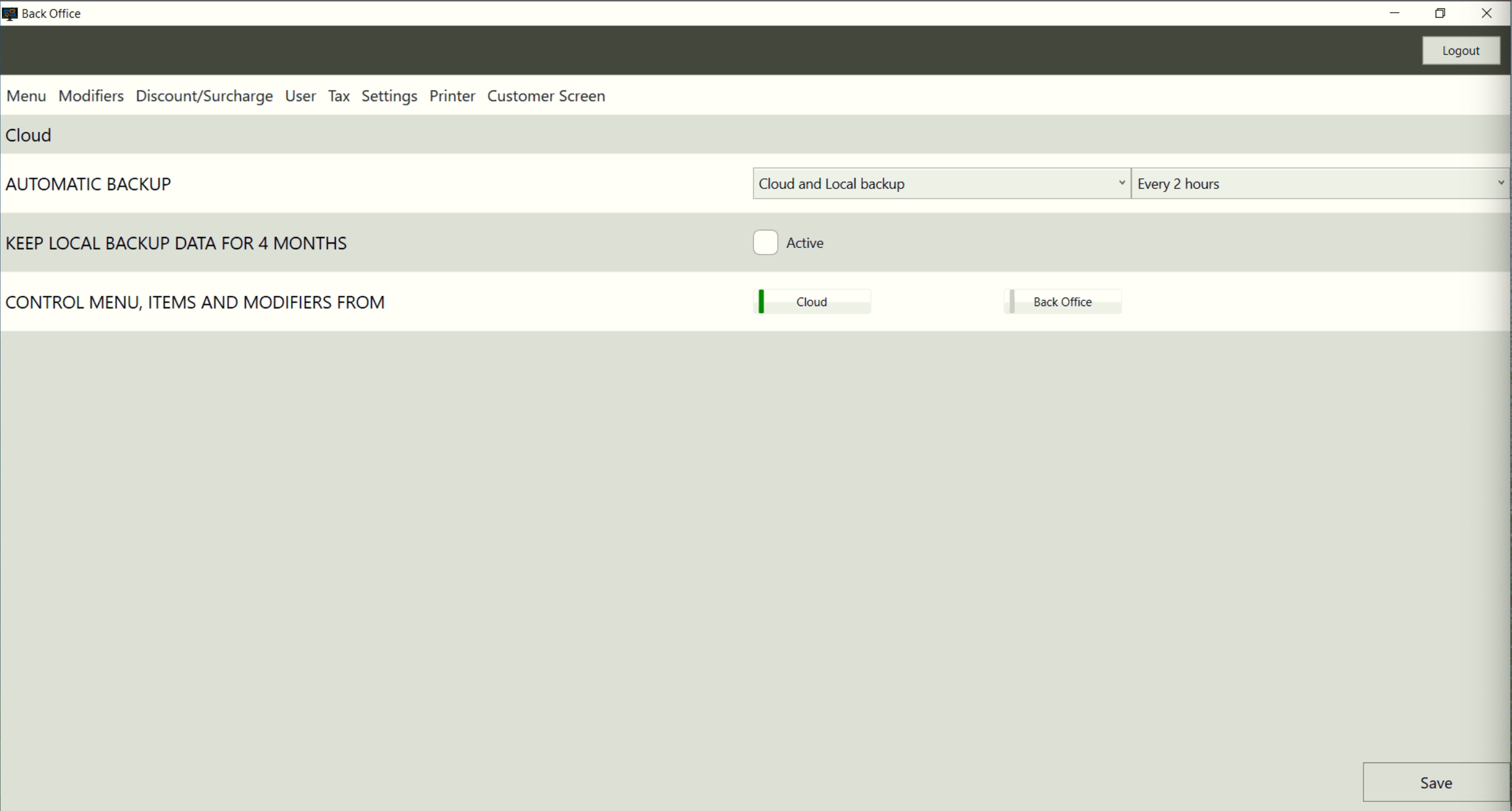
In the Back Office, navigate to: Settings > Cloud > Control Menu, Items, and Modifiers.
Ensure this setting is set to 'Cloud' and press Save.
- If it is set to 'Back Office', the POS will use the locally stored menu and not sync with cloud updates.
2. Check Client ID Match
- Go to Settings > General in the Back Office application.
- Compare the Client ID in the POS settings with the Client ID in the Back Office.
- If the Client ID does not match, the POS is not linked to the correct cloud menu and won’t sync correctly. Update the Client ID to match and restart the POS.
3. Confirm Internet Connection
- Ensure the POS terminal is connected to the internet.
- Test by opening a web browser on the POS device and navigating to a website (e.g., google.com).
- If there is no internet, resolve the connectivity issue first (e.g., restart the router, check Wi-Fi settings, or switch to a wired connection).
4. Restart the POS Software
- If all settings are correct but the menu is still not syncing, try restarting the POS device.
5. Restart the POS System
6. Contact Support
If none of the above steps resolve the issue, escalate to the support team with the following details:
- POS Client ID
- Internet connection status
- Any error messages shown in the POS
- Steps already attempted
Still need help?
Ask a question and our team will pick it up. You can also email support@pushpos.com.